
I've been working as a software engineer for years, tackling everything from legacy monoliths to modern microservices. Frankly, being a programmer isn't enough anymore; we need operational skills like Docker.
Many jobs today don't just require React, Go, or Python; they also demand additional skills like Docker. That's why you must learn Docker, whether you're an IT student or a junior developer.
In a real company, nobody installs databases, Nginx, Node.js, Redis, or PostgreSQL directly on their servers anymore. We spin them up in throwaway containers. Learning this now puts you years ahead of your peers.
Note: This approach also helps secure your environment, making it much harder for attackers to inject unwanted files into your server.
Docker: The Standard for App Packaging
Packaging applications along with all their necessities (code, libraries, dependencies, etc.) into a single unit called a container.
Originally created in 2010 as an internal project named dotCloud, Docker was officially released as an open-source project in March 2013.
So what is docker ?
Docker is a platform that allows you to package your application and its dependencies into a container, which can then be run on any machine that has Docker installed.
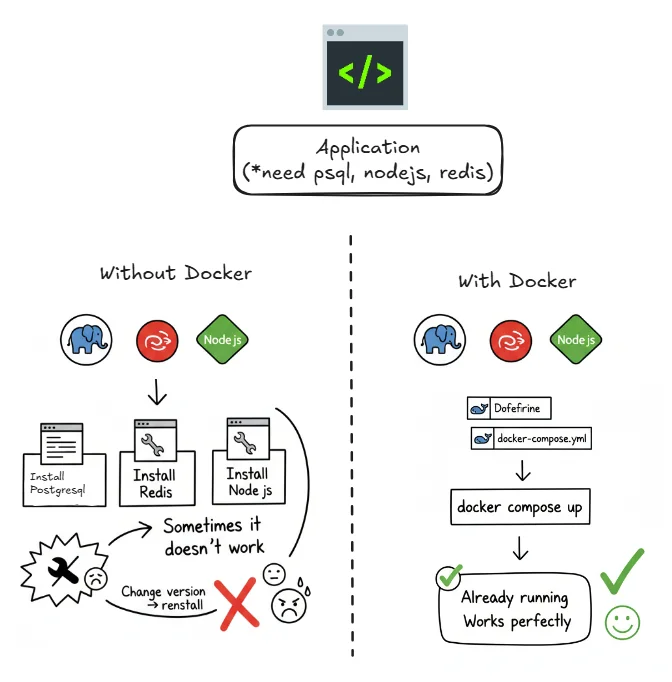
Without Docker, you often face environment issues like when we move it to other computer, friends, or server. you have to install nodejs, mysql, redis, postgresql, nginx, etc. and sometimes it also doesn't work because the version of the application is different.
But with docker, you just install Docker, run docker compose up, and your entire stack is live.
Quick Start
Now that you know what Docker is, let's understand how it actually works.
Once your application is ready and you want to publish it, the first step is creating a Docker file—usually named Dockerfile and located in your project's root directory.
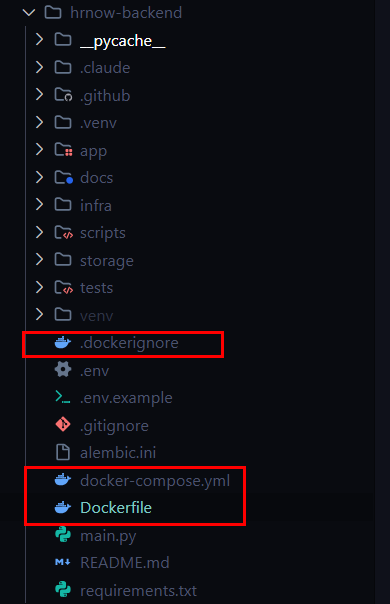
The image above shows a Dockerfile with simple instructions:
FROM node:20-alpine
WORKDIR /app
COPY package* .
RUN npm i
COPY . .
CMD ["npm", "run", "dev"]
Essentially, this Dockerfile serves as a blueprint to create an image of your application.
There also .dockerignore file that works like .gitignore.
node_modules
dist
*.log
.next
To build an image from this Dockerfile, you can use the command:
docker build -t image-name .
Once the image is created, you can run a container from that image using:
docker run -d -p 3000:3000 image-name
This will start a container and map your application to port 3000.
A Container is a running instance of an Image. The image itself is just the blueprint.
Now, you can run your application perfectly without even having Node.js installed on your host machine.
Docker Compose
While the steps above are enough for beginners, most applications require a database, Nginx, or other services. This is where Docker Compose comes in—it allows you to manage and run multiple containers simultaneously.
If your application needs a database, you can create a docker-compose.yml file in your root directory to define both services together:
version: "3"
services:
  app:
    build: . # build image from Dockerfile
    ports:
      - "3000:3000"
    depends_on:
      - db
  db:
    image: postgres:15-alpine # use image from Docker Hub
    environment:
      POSTGRES_USER: postgres
      POSTGRES_PASSWORD: postgres
      POSTGRES_DB: postgres
    volumes:
      - db_data:/var/lib/postgresql/data
volumes:
  db_data:
Docker Hub is a registry that provides pre-built images. For instance,
node:20-alpinein theDockerfileis an image provided by Docker Hub.
To launch your entire stack, simply run:
docker compose up -d
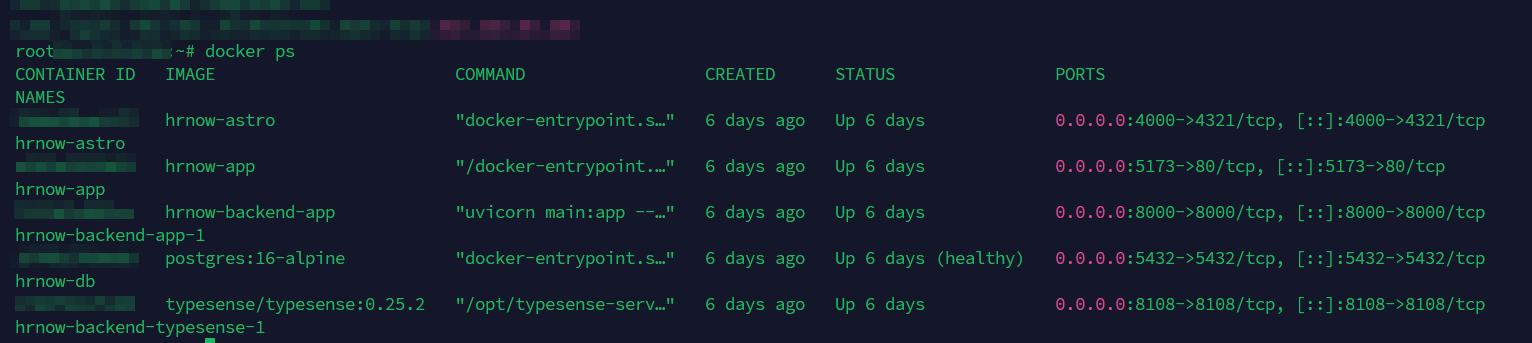
And voila! Your application is live. To see a list of your running containers, use:
docker ps
The Mental Model (Analogies)
If you're confuse let me bring you to understand Docker concepts through food:
- Docker Image = The Ingredients / Recipe (e.g., Raw Instant Noodle pack). It is the blueprint.
- Docker Container = The Cooked Meal (e.g., The bowl of noodles ready to eat). It is the running instance of the image.
- Docker Compose = The Set Menu (e.g., Fried Noodles + Lemon Tea + Side Dish). It defines and runs multiple containers together.
- Docker Hub = The Supermarket. The global warehouse where you download basic ingredients (Images).
- Docker Desktop = The Menu Card / GUI. A visual interface to manage your orders.
Initial Setup
First, let's check if Docker is installed correctly by running the following command:
docker --version
docker info
If Not, you can download it from Docker's official website.
Docker Syntax Cheat Sheet
Below This is the cheat sheet for docker commands, you can copy and paste it to your terminal. If you don't understand what the command does, just google it.
Working with Images
docker pull [image_name]    # Download an image from Hub
docker images               # List all downloaded images
docker rmi [image_id]       # Delete an image
Working with Containers
docker run [image_name]           # Create and start a container
docker ps                         # List running containers
docker ps -a                      # List ALL containers (including stopped ones)
docker stop [container_id]        # Stop a running container
docker start [container_id]       # Start a stopped container
docker rm [container_id]          # Delete a container
Note: You can use the container name instead of the ID for commands like stop and rm.
The "Run" Command Explained
docker run is like ordering and eating immediately.
docker run nodeIf the node image isn't on your machine, Docker will automatically download it (pull) and then start it.
Useful Flags:
-d: Detached mode. Runs the container in the background (so it doesn't lock your terminal).-it: Interactive terminal. Allows you to interact with the container (like a shell).--name: Assign a custom name to your container.
Example:
docker run -d -it --name my_node_app nodeAdvanced Interactions
Jumping Inside a Container
To run commands inside a running container (like SSH-ing into it):
docker exec -it [container_name] bash
# If bash isn't installed, try sh:
docker exec -it [container_name] sh
Building Your Own Image
If you have a Dockerfile:
# -t gives it a tag (name:version)
# . means "look in the current directory"
docker build -t peter-portfolio:1.0.0 .
Networking & Environment Variables
Port Mapping (-p): Expose a port from the container to your host machine.
# syntax: -p [host_port]:[container_port]
docker run -d -p 3000:3000 peter-portfolio:1.0.0
Environment Variables (-e): Inject secret keys or configuration without changing the code.
docker run --name postgres-db \
  -e POSTGRES_USER=root \
  -e POSTGRES_PASSWORD=secret \
  -d postgres:12-alpine
This command:
- Names the container
postgres-db. - Sets the user to
root. - Sets the password to
secret. - Runs it in the background (
-d). - Uses the
postgresimage (version12-alpine).
Debugging
Something went wrong? Check the logs:
docker logs [container_name_or_id]
# Follow logs in real-time
docker logs -f [container_name_or_id]
So now you know the basic of docker, you can start using it in your project.
Conclusion
Docker is a game-changer for modern development. It standardizes your environment, making it easier to deploy and scale your applications. Whether you're a student or a professional, learning Docker will give you a competitive edge in the job market.
Start small with simple containers and gradually explore more complex configurations. With Docker, you can focus on building great software instead of worrying about environment issues.